How to Fix Keyboard Malfunctions and Know When to Upgrade
Common Reasons for Keyboard Malfunctions
Keyboard problems can disrupt work, gaming, and daily typing. From unresponsive keys and sticky switches to wireless issues or input lag, most malfunctions have simple causes. This guide explains why keyboards stop working, how to test them, easy troubleshooting steps, and when to upgrade to a better model.
Common Reasons for Keyboard Malfunctions
Keyboard issues can happen for many reasons, but they usually fall into three main categories: hardware problems, connection issues, and software conflicts.
One of the most common causes is physical wear and tear. Keyboards are used every day, and over time, the keys, switches, and internal circuits may begin to degrade. If certain keys feel sticky, fail to bounce back, or do not register when pressed, there may be dust, crumbs, or debris trapped under the keycaps. This is especially common for users who eat or drink near their keyboards. Regular cleaning can help prevent these issues and extend the life of your keyboard.
Connection problems are another frequent cause of keyboard malfunctions. For wired keyboards, a loose USB cable, damaged connector, or faulty port can prevent the keyboard from communicating properly with your computer. If some keys respond inconsistently or the entire keyboard stops working, check whether the cable is securely plugged in. You can also try another USB port or connect the keyboard directly to the computer instead of using a USB hub.
For wireless keyboards, low battery power, signal interference, or receiver problems can lead to delayed input or no response at all. Make sure the keyboard is charged or has fresh batteries. Also, keep the wireless receiver close to the keyboard and avoid placing it near devices that may cause interference, such as routers, metal objects, or other wireless peripherals.
Software conflicts can also affect keyboard performance. Outdated drivers, incorrect system settings, or third-party applications may cause keys to stop working or behave unexpectedly. In some cases, keyboard shortcuts may be remapped accidentally, or accessibility settings may change how the keyboard responds. Keeping your drivers updated and checking your keyboard settings can often solve these problems quickly.
How to Test Your Keyboard
Testing your keyboard is an important step before deciding whether it needs repair or replacement. A proper test helps you determine whether the issue is caused by hardware damage, software settings, or connection problems.
For mechanical keyboards, start by testing each key individually. You can use online keyboard testing tools such as KeyboardTester or PassMark KeyTest. These tools show whether each keypress is detected correctly. When you press a key, it should light up or change color on the screen. If a key does not register, the problem may be caused by dirt under the keycap, a damaged switch, or a loose connection.
If you use a low latency gaming keyboard, you may also want to test features such as anti-ghosting, N-key rollover, programmable keys, and response speed. Many gaming keyboard brands provide dedicated software that allows users to monitor key inputs, customize macros, adjust lighting, and check performance settings. These tools are especially useful for gamers who need fast and accurate input during competitive play.
You can also use built-in troubleshooting tools in your operating system. On Windows, open the keyboard settings or Device Manager to check whether the system recognizes your keyboard correctly. The Windows troubleshooter may also detect driver conflicts or configuration problems. If your keyboard works in one program but not another, the issue may be related to software settings rather than the keyboard itself.
Troubleshooting Steps for Keyboard Issues
Once you have identified the possible cause, follow these troubleshooting steps to fix common keyboard problems.
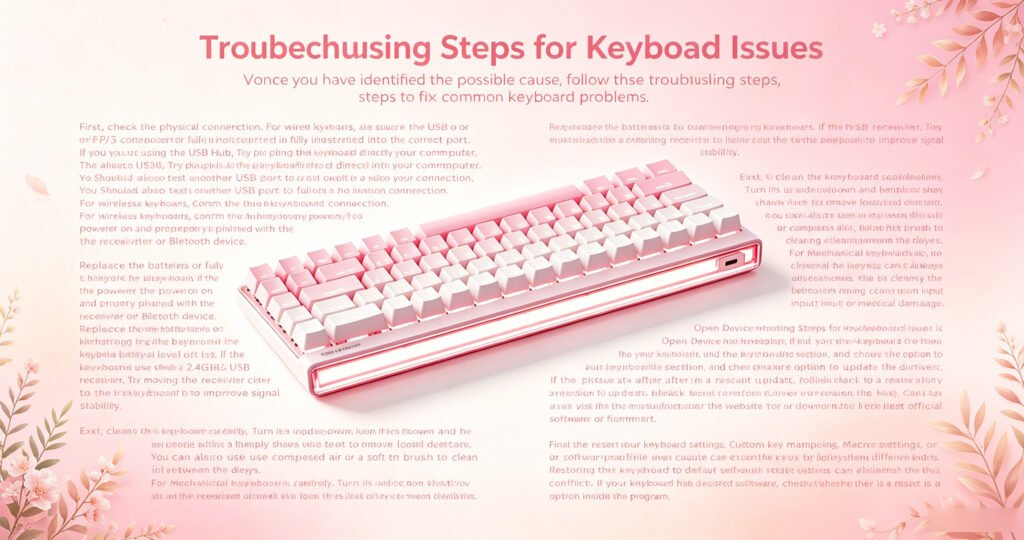
First, check the physical connection. For wired keyboards, make sure the USB or PS/2 connector is fully inserted into the correct port. If you are using a USB hub, try plugging the keyboard directly into your computer. You should also test another USB port to rule out a faulty connection.
For wireless keyboards, confirm that the keyboard is powered on and properly paired with the receiver or Bluetooth device. Replace the batteries or fully recharge the keyboard if the battery level is low. If the keyboard uses a 2.4GHz USB receiver, try moving the receiver closer to the keyboard to improve signal stability.
Next, clean the keyboard carefully. Turn it upside down and gently shake it to remove loose debris. You can also use compressed air or a soft brush to clean between the keys. For mechanical keyboards, removing the keycaps can make cleaning more effective. Always disconnect the keyboard before cleaning to avoid accidental input or electrical damage.
Updating or reinstalling keyboard drivers is another useful step. Open Device Manager, find your keyboard under the keyboard section, and choose the option to update the driver. If the issue started after a recent update, rolling back to a previous driver version may help. You can also visit the manufacturer’s website to download the latest official software or firmware.
Finally, reset your keyboard settings. Custom key mappings, macro settings, or software profiles may cause certain keys to behave differently. Restoring the keyboard to default settings can eliminate these conflicts. If your keyboard has dedicated software, check whether there is a reset option inside the program.
When to Consider Replacing Your Keyboard
If your keyboard continues to malfunction after cleaning, testing, and updating drivers, it may be time to consider a replacement. Repeated key failures, severe input lag, random disconnections, or inconsistent performance are signs that the keyboard may be reaching the end of its lifespan.
Age is another important factor. Mechanical switches, membrane layers, circuit boards, and cables can all wear out over time. If your keyboard has been used for several years and no longer feels responsive or comfortable, upgrading to a newer model can improve both productivity and comfort.
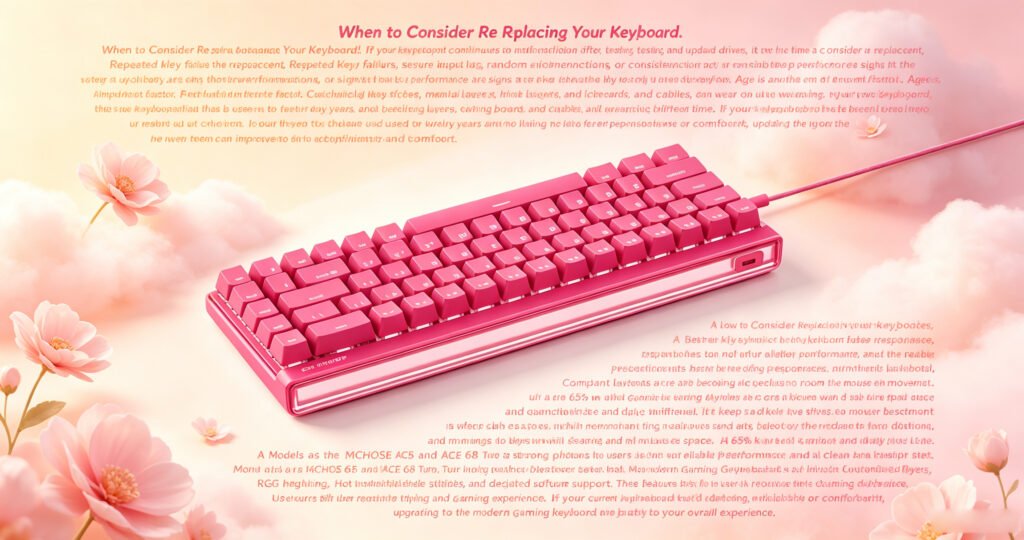
For gamers, choosing a keyboard designed specifically for gaming can make a noticeable difference. A low latency gaming keyboard provides faster response, better key rollover, and more reliable performance during intense gameplay. Compact layouts are also becoming increasingly popular because they save desk space and allow more room for mouse movement.
A 68% layout gaming keyboard is a great choice for users who want a balance between compact size and practical functionality. It keeps the essential keys while removing unnecessary space, making it suitable for both gaming and daily use. Models such as the MCHOSE Ace 68 and Ace 68 Turbo are strong options for users who want reliable performance, low-latency input, and a clean desktop setup.
Many modern gaming keyboards also include customizable keys, RGB lighting, hot-swappable switches, and dedicated software support. These features allow users to personalize their typing and gaming experience. If your current keyboard feels outdated, unreliable, or uncomfortable, upgrading to a modern gaming keyboard may greatly improve your overall experience.
Final Thoughts
Keyboard problems are common, but most of them can be fixed with basic troubleshooting. Start by checking the connection, cleaning the keys, testing each input, updating drivers, and resetting your settings. If the issue continues, your keyboard may have hardware damage or age-related wear.
Knowing when to repair and when to replace your keyboard can save time and frustration. Whether you need a reliable keyboard for work or a low latency gaming keyboard for competitive play, choosing the right model can improve comfort, speed, and performance every day.
Recommended Products
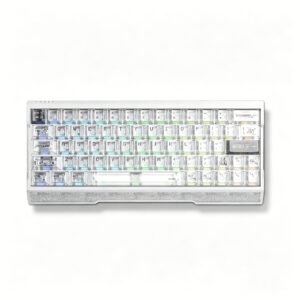
AULA AG63
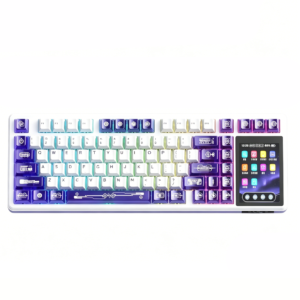
AULA L99

Orange Cat Keycap